
Limit distractions and maintain privacy in your current surroundings by using a virtual background. You can blur your background, change your background, or add a background image.
 |
Your Webex site administrator must enable virtual backgrounds for your site in order to use them. |
Having issues or don't see the Change Background option? Check the list of requirements to make sure your Webex version and computer or device support virtual backgrounds.
|
Using a virtual background increases the CPU usage of your computer or mobile device and therefore may impact your battery life. |
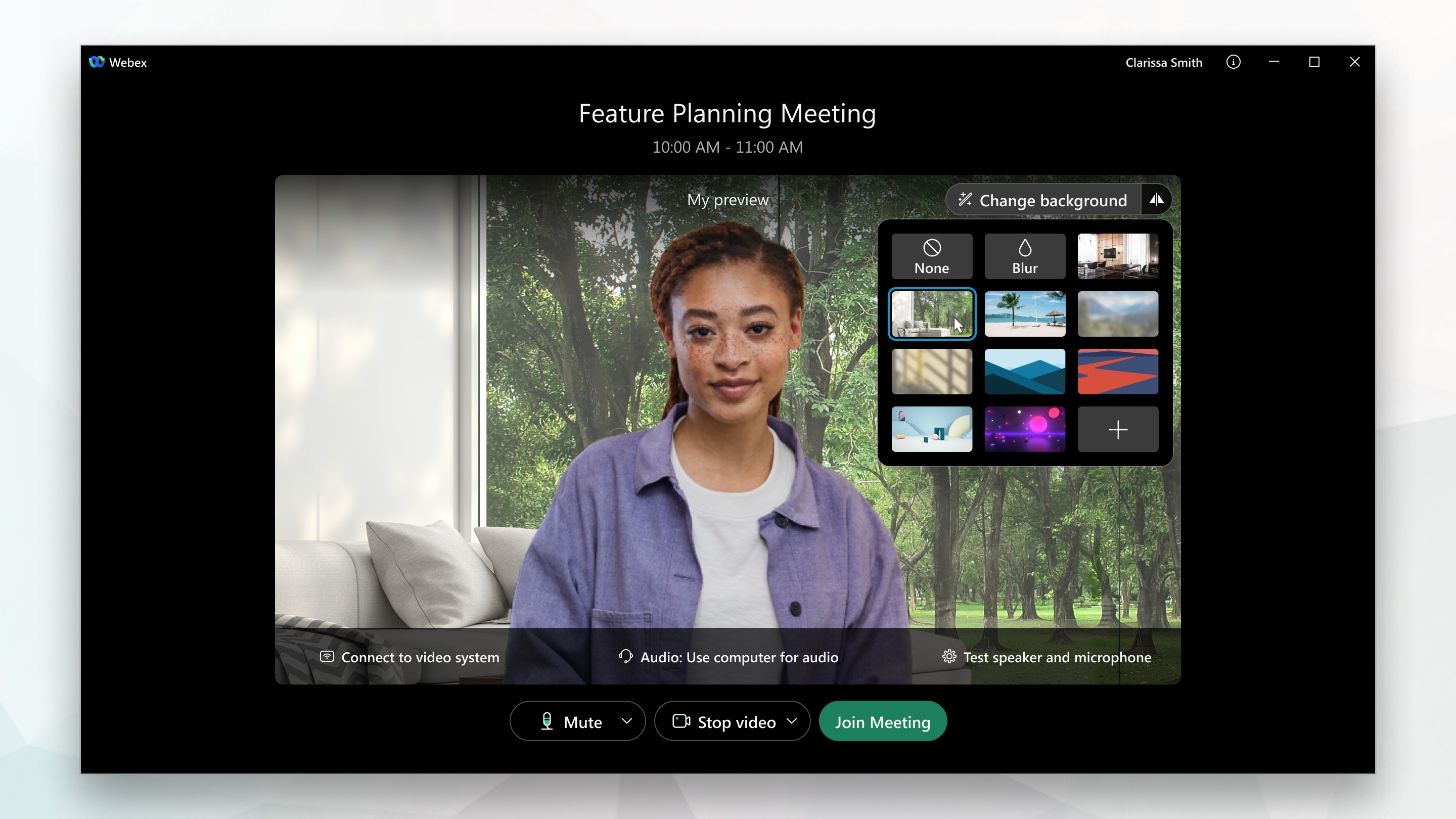
On Mac or Windows, use virtual backgrounds in meetings and events using the Meetings desktop app.
|
Changing your background isn't supported in Webex Training. |
| 1 |
To set your virtual background before you join a meeting, click Change background on the preview screen and do one of the following:
|
||
| 2 |
To change your background during a meeting click the Video options icon
|
||
| 3 |
When you're ready for everyone in the meeting to see your background, click Apply. Webex remembers your selection for your next meeting. |

 , choose
Comments
0 comments
Please sign in to leave a comment.